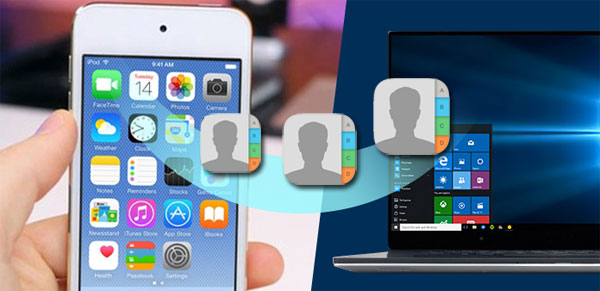
„ ¿Cómo transfiero mis contactos del iPhone 16 Pro Max a la PC? Cada vez que los sincronizo, la PC borra todos mis contactos. Quiero transferirlos a una PC con Windows 11 sin usar Outlook. ¡Gracias! ”
You may lose important contacts on your iPhone due to accidental deletion, iOS update, jailbreaking error, etc. Then you may want to transfer contacts from your iPhone to your PC or Mac as a way to keep the data safe. Whatever the reason, there are several ways to export contacts from iPhone to a computer. In this article, we will share with you 5 effective ways to transfer contacts from iPhone to a computer easily and quickly. Read on and check out.
Método 1: Cómo transferir contactos del iPhone al ordenador sin iTunes/iCloud
Con la herramienta adecuada, transferir contactos de tu iPhone al ordenador es ahora mucho más fácil que antes. Además, puedes hacerlo sin usar iTunes ni iCloud. Una de las mejores herramientas para transferir contactos es iPhone Transfer. Con ella, puedes exportar fácilmente tus contactos del iPhone al ordenador en diversos formatos, como Excel, texto y XML. Es muy fácil de usar y te permite transferir contactos del iPhone de forma masiva o selectiva. También funciona en todos los dispositivos y versiones de iOS, incluyendo los últimos iPhone 17 Air/17/17 Pro/17 Pro Max, iOS 18 e iOS 26.
Descarga gratuita Descarga gratuita
Here’s how to transfer contacts from iPhone to computer without iTunes/iCloud:
Paso 1 : Download and install the iPhone contacts transfer tool on your computer. Run the program and then connect your iPhone using a USB cable. Click on “Manage” in the top menu to continue.
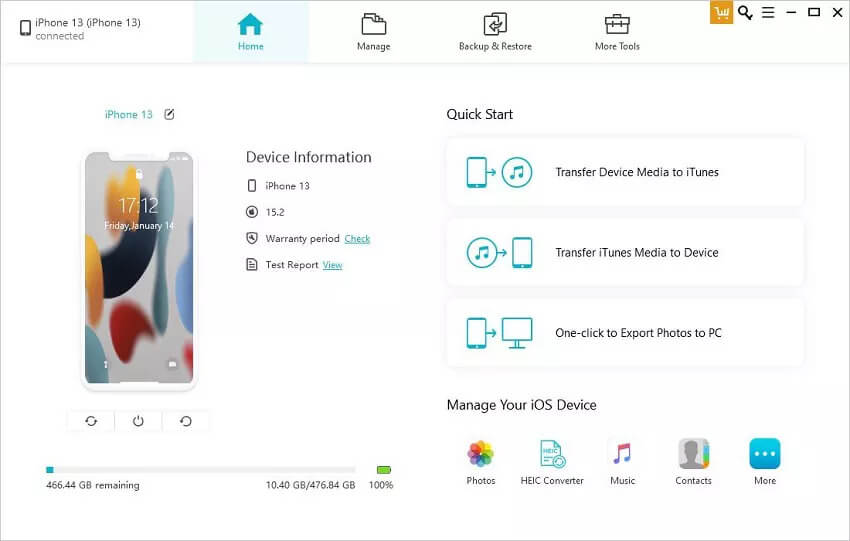
Paso 2 : Click on “Contacts” from the options on the left, and all the contacts on your iPhone will be displayed on the screen with details.
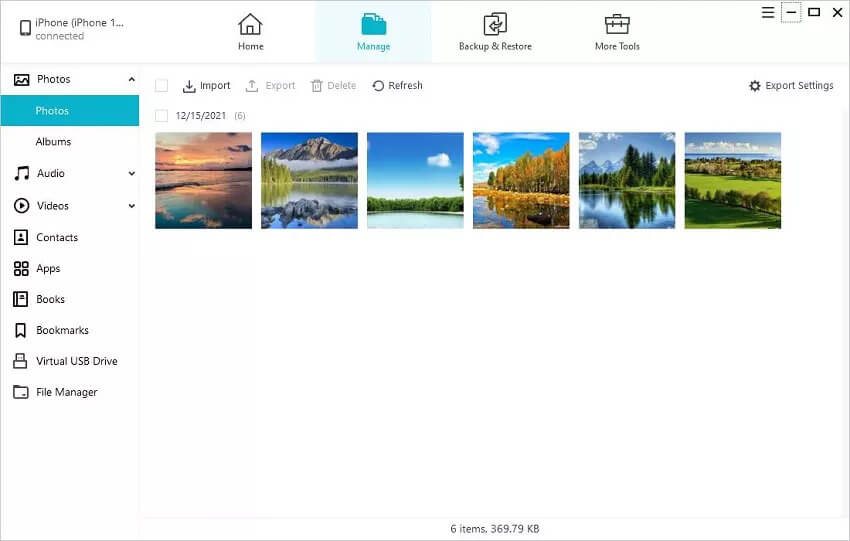
Paso 3 : Click on “Export” and then select “to vCard File” or “to CSV file” and your contacts will be exported to your computer in the format you have selected.
Descarga gratuita Descarga gratuita
Método 2: Cómo transferir contactos del iPhone al ordenador mediante iCloud
If you don’t want to install a third-party tool on your computer, you can transfer contacts from your iPhone to your computer with the help of iCloud. You will first need to sync the contacts on your iPhone with iCloud and then export them from iCloud to your computer in vCard format.
Follow these simple steps to transfer contacts from your iPhone to the computer using iCloud:
Paso 1 : En tu iPhone, ve a Ajustes > [tu nombre] > iCloud y asegúrate de que la sincronización de "Contactos" esté activada.

Una vez que tus contactos del iPhone estén sincronizados con iCloud, podrás acceder a ellos desde cualquier otro dispositivo siempre que inicies sesión con las mismas credenciales de iCloud.
Paso 2 : Now open the iCloud desktop application on your Mac or Windows PC and turn on the sync option for Contacts. Your iPhone contacts will be automatically synced to your computer.
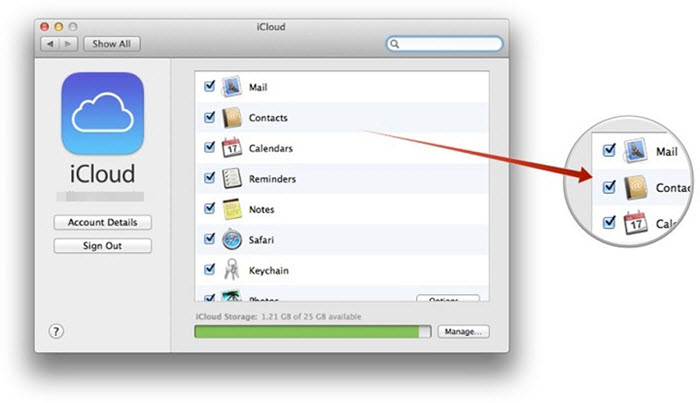
También puedes copiar manualmente los contactos de tu iPhone a tu ordenador iniciando sesión en la página web oficial de iCloud. Aquí te explicamos cómo hacerlo:
Paso 1 Acceda al sitio web oficial de iCloud desde cualquier navegador e inicie sesión con su ID de Apple. Haga clic en «Contactos» y verá una lista de los contactos disponibles en el dispositivo.

Paso 2 Seleccione los contactos que desea transferir y haga clic en el icono de "Configuración" en la parte inferior izquierda. A continuación, haga clic en "Exportar vCard" para comenzar a exportar los contactos seleccionados a su computadora.

Método 3: Cómo transferir contactos del iPhone al ordenador con iTunes
Si buscas una forma alternativa de hacer una copia de seguridad de tus contactos del iPhone a la computadora, puedes usar iTunes. Aunque no puedes seleccionar el tipo de datos que deseas respaldar con iTunes, esta es una manera de exportar tus contactos del iPhone a la computadora. A continuación, te explicamos cómo copiar contactos de un iPhone a la computadora usando iTunes:
- Abre iTunes en tu ordenador y asegúrate de tener instalada la última versión. A continuación, conecta el iPhone al ordenador mediante un cable USB.
- Click on the iPhone icon when it appears in iTunes and then tap on the Summary tab on the left. Make sure that “This Computer” is selected on the Backups panel.
- Then click “Backup Now” to make a backup of your iPhone data, including contacts. Keep the device connected to the computer until the backup process is complete.

Way 4: How to Transfer Contacts from iPhone to Computer via Email
También puedes usar el correo electrónico para transferir contactos de tu iPhone a una computadora sin iTunes ni iCloud. Este método es muy sencillo, pero solo te será útil si tienes pocos contactos para transferir, ya que solo puedes transferir uno a la vez. Aquí te explicamos cómo hacerlo:
- Abre la aplicación Contactos en tu iPhone y localiza el contacto que deseas transferir.
- Click on the contact, scroll down to tap on “Share Contact” and choose “Mail”.
- Then enter an email address and tap “Send”. The contact will be sent as a vCard attachment that you can open and download to your computer.

Puedes repetir el proceso para todos los contactos que desees transferir a tu ordenador.
Way 5: How to Transfer Contacts from iPhone to Computer via AirDrop (Mac Only)
If you want to copy contacts from iPhone to Mac, AirDrop is also a good choice. However, same like using email, this transfer process can also be tedious since you can only Airdrop one contact at a time. Ensure that your iPhone and Mac are connected to the same Wi-Fi network and then follow these steps:
Paso 1 Para empezar, activa AirDrop en tu iPhone y Mac.
- For iPhone: Swipe up from the bottom of the screen to open the Control Center. Touch and hold the network settings card, then tap on the AirDrop button and choose either “Everyone” or “Contacts Only”.
- For Mac: Go to Finder and choose AirDrop in the sidebar. Then click on “Allow me to be discovered by” in the AirDrop window. Set to receive from “Everyone” or “Contacts Only” of your choice.
Paso 2 : Now open the Contacts app on your iPhone. Select the contact that you want to transfer and then tap on “Share Contact.”

Paso 3 : Tap “Airdrop” and then select your Mac when it appears. In the notification that appears on your Mac, click “Accept” and the contact will be transferred to the Mac.
Descarga gratuita Descarga gratuita
¿Qué tan útil fue esta publicación?
¡Haz clic en una estrella para valorarlo!
Calificación promedio / 5. Recuento de votos: