Sappiamo che una delle funzioni di iTunes è il trasferimento di dati tra iPhone e computer. Tuttavia, non tutti gli utenti iOS ne apprezzano l'utilizzo. Da un lato, il processo di trasferimento richiede solitamente molto tempo. Dall'altro, si verificano spesso messaggi di errore durante il trasferimento. È davvero frustrante. Qualunque siano le ragioni, questo articolo vi sarà di grande aiuto se avete bisogno di trasferire file da iPhone a PC senza iTunes.
How to Transfer Files from iPhone to PC without iTunes in 1 Click
Con il progresso della tecnologia, sono sempre più numerosi gli strumenti di terze parti che consentono di trasferire file da dispositivi iOS a computer. Una delle opzioni più affidabili è iPhone Transfer, che offre una soluzione completa per trasferire tutti i file da iPhone o iPad a un computer.
È una delle alternative a iTunes presenti sul mercato. Alcune delle sue caratteristiche principali la rendono la scelta più popolare per la maggior parte degli utenti iOS:
- The supported data types of iPhone Transfer are much more than iTunes. iTunes only supports to transfer of 5 types of data, while iPhone Transfer supports more than 20 types of data.
- The data saved in iTunes is unreadable, and you can preview all the files in detail for free when choosing to transfer files via iPhone Transfer.
- Selectively transfer the files from iPhone/iPad to the computer.
- No need to connect your iPhone/iPad or computer to Wi-Fi.
- I dati attualmente presenti sui tuoi dispositivi iOS non verranno sovrascritti né cancellati.
Download gratuito Download gratuito
Ecco i passaggi dettagliati per trasferire file da iPhone a PC senza iTunes tramite iPhone Transfer.
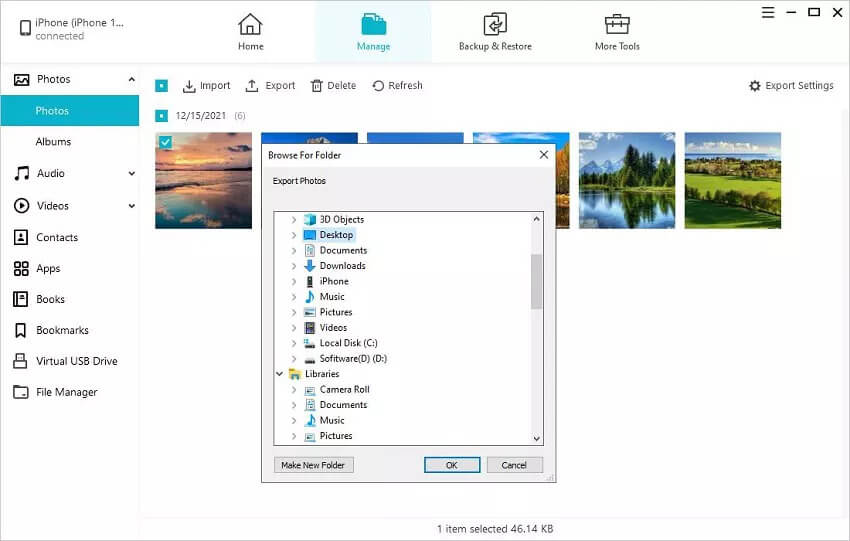
Passaggio 1. Download iPhone Transfer and run it on your computer. After that, choose ‘Manage’.
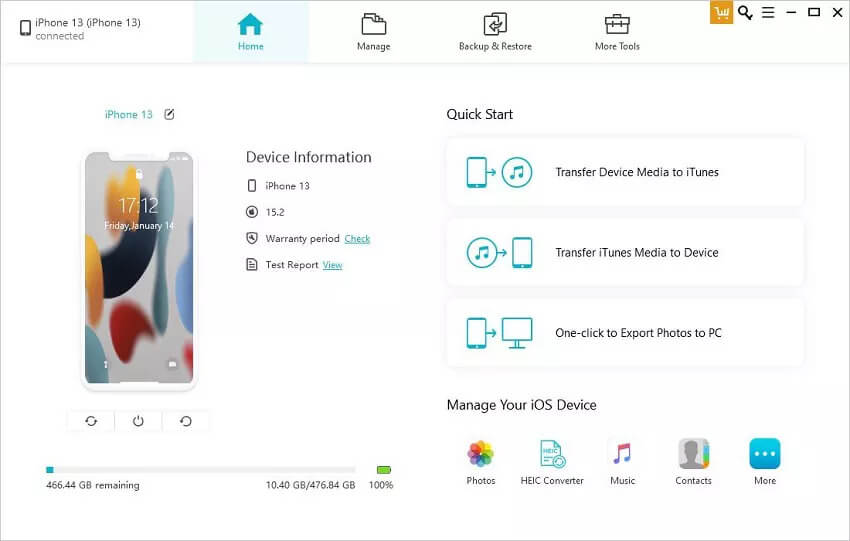
Passaggio 2. Dopodiché, collega il tuo iPhone al PC e seleziona i file che desideri trasferire.
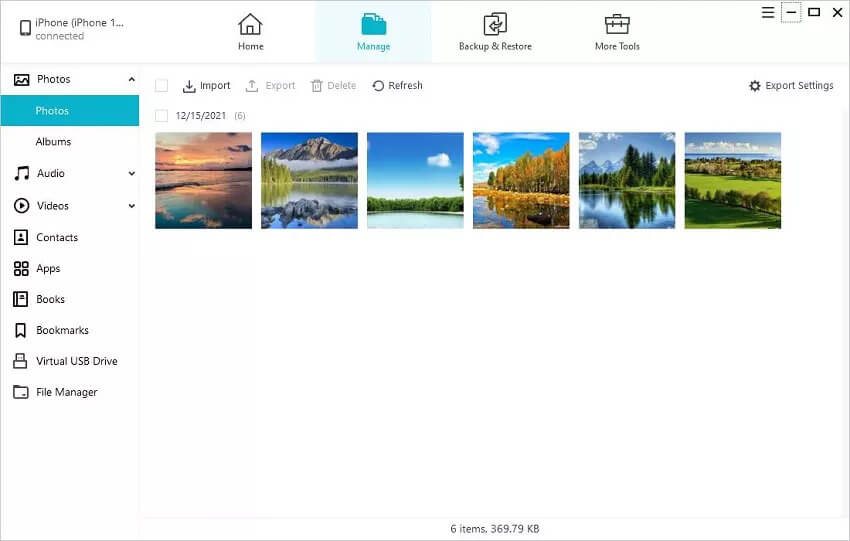
Passo 3. Select the files you want to save on your computer and click “Export” to transfer them from your iPhone to the computer.
Download gratuito Download gratuito
How to Transfer Files from iPhone to PC via iCloud
iCloud can also be used to transfer files from your iPhone or iPad to your computer. And this tool is more convenient than iTunes. You can directly perform the transferring process without connecting your iPhone to the computer. However, it provides limited free storage of 5 GB. You need to purchase more storage if the free storage runs out.
Here are the steps to back up iPhone data to iCloud to export files from iCloud backup to the computer.
Eseguire il backup dell'iPhone con iCloud
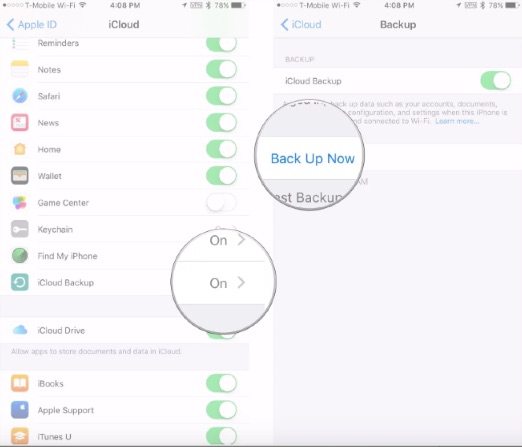
Passaggio 1. Sign in to your iCloud account on your iPhone/iPad.
Passaggio 2. Ensure that your phone is connected to a wifi network.
Passo 3. Click iCloud from iPhone settings and enable iCloud Backup.
Trasferire file da iCloud al computer tramite 2 metodi
Download Files from iCloud to PC Online
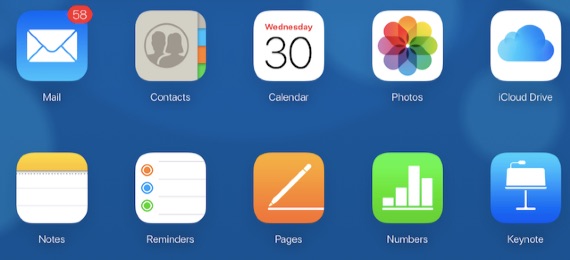
There are many ways users can access iCloud backup data. A common way is to visit the iCloud website. Log in to the iCloud website with your Apple ID username and password. Then choose the files you need to download to your pc.
Vantaggi: Accedi ai file iCloud online.
Svantaggi: I dati a cui è possibile accedere sono limitati. Alcuni dati importanti, come i messaggi di WhatsApp e i relativi allegati, non possono essere esportati tramite iCloud.
Access iCloud Backup via the iCloud Control Panel
Il secondo metodo per accedere e gestire i dati di backup di iCloud è tramite il pannello di controllo di iCloud.
Passaggio 1. Scarica iCloud per Windows dal sito ufficiale di Apple.
Passaggio 2. Sign in to the iCloud account with the Apple ID username and password.
Passo 3. Seleziona i file che desideri sincronizzare e fai clic sul pulsante "Applica".
Come trasferire file da iPhone a PC senza iTunes tramite e-mail
Photos, documents, contacts, and other data on your iPhone could also be transferred to pc via Email. However, it is very complicated. You cannot transfer multiple files at the same time.
Passaggio 1. Apri l'app Contatti, Foto o Note sul tuo iPhone, quindi trova il pulsante Condividi per inviare i file al tuo indirizzo email.
Passaggio 2. Then, log in to your Email account on your computer and download the files to your computer.
Conclusione
Therefore, the above are all the possible solutions to transfer files from iPhone to a PC without iTunes. Let’s make a comparison of the 3 methods. iCloud is an old and traditional tool for backing up and transferring iPhone files. But it has storage limitations. In other words, only parts of the data can be moved to your computer. If you want to transfer all files in one click, then the last method is not appropriate for you. So the best way is to use iPhone Transfer. Don’t miss this tool!
Download gratuito Download gratuito
Quanto è stato utile questo post?
Clicca su una stella per votare!
Valutazione media / 5. Conteggio dei voti: