Ai multe videoclipuri pe iPhone sau iPad? Videoclipurile sunt adesea fișiere foarte mari care pot ocupa mult spațiu de stocare. Dacă dispozitivul tău rămâne fără spațiu de stocare, transferul videoclipurilor de pe iPhone/iPad pe computer este o modalitate bună de a elibera spațiu de stocare. De asemenea, este util să păstrezi o copie de rezervă în siguranță a videoclipurilor importante pentru a evita pierderea neașteptată a datelor pe iPhone sau iPad.
There are several ways to do this on both Mac and Windows. In this article, we will introduce 7 ways so you can learn how to transfer videos from iPhone to computer easily and quickly. All these methods work well on all iPhone models and iOS versions, including the latest iPhone 17/17 Pro/17 Pro Max, iPhone 16, iPhone 15, iOS 18 and iOS 26.
Part 1. How to Transfer Videos from iPhone to Computer in One Click
Pentru a transfera videoclipuri de pe iPhone, se recomandă insistent iPhone Transfer. Este un instrument profesional de gestionare a datelor de pe iPhone care vă ajută să transferați tot conținutul iPhone-ului pe computer, inclusiv videoclipuri, muzică, fotografii, contacte, mesaje text, WhatsApp și multe altele. Dacă aveți un volum mare de videoclipuri pe iPhone care ocupă prea mult spațiu de stocare, puteți utiliza acest software pentru a transfera videoclipuri de pe iPhone pe PC sau Mac cu un singur clic.
Descărcare gratuită Descărcare gratuită
Here’s how to get videos from iPhone to Computer in one click:
Pasul 1 Descărcați și instalați iPhone Video Transfer pe computer, apoi conectați iPhone-ul sau iPad-ul folosind un cablu USB. Deblocați dispozitivul și selectați „Acordați încredere acestui computer” când vi se solicită acest lucru. Acest lucru va permite programului să detecteze computerul.
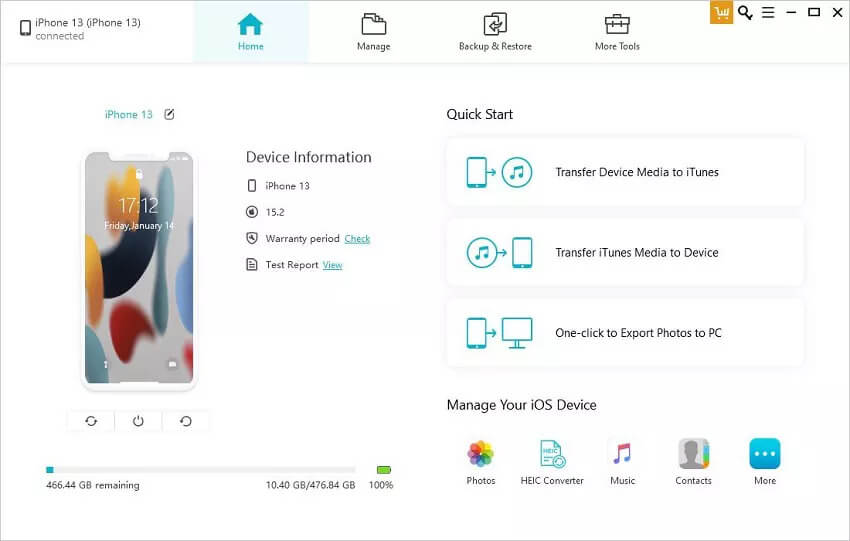
Pasul 2 : Once the device has been successfully detected, click on “One-click Export Photos to PC” to begin the video transferring process.
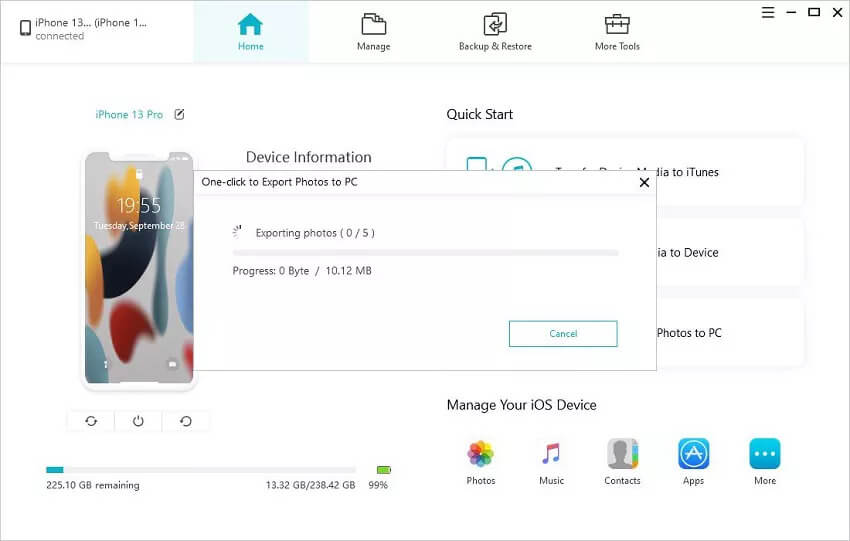
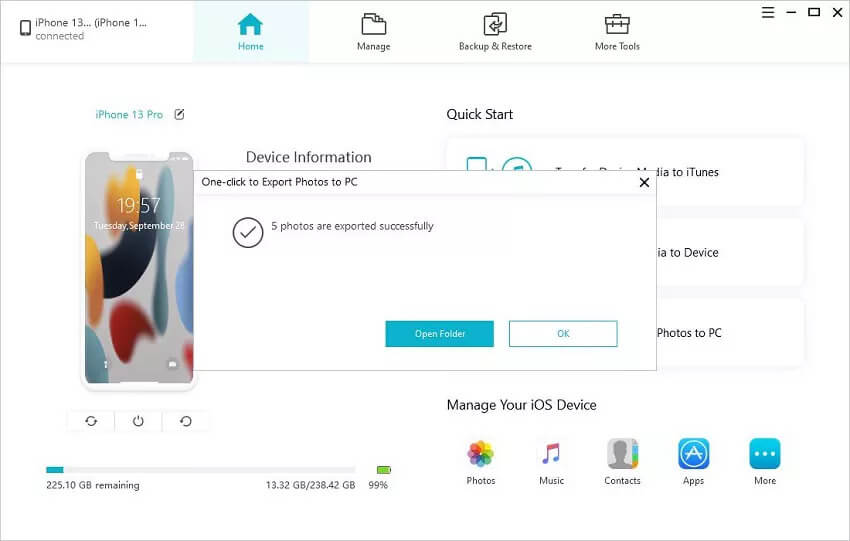
Pasul 3 : All the photos and videos on your device’s Camera Roll will be transferred to the computer. Click on “Open Folder” in the pop-up to view the transferred videos on your computer.
Descărcare gratuită Descărcare gratuită
Part 2. How to Transfer Videos from iPhone to PC/Mac with iCloud Photos
With iCloud Photos, you can easily access the photos and videos on all your Apple devices, including iPhone, iPad, iPod touch, Mac, iCloud.com, and even your PC. If needed, you can easily download these photos and videos to your computer. Make sure both your iPhone and computer are connected to a Wi-Fi network, and then follow the steps below to transfer videos from iPhone to computer:
Pasul 1 : On your iPhone or iPad, navigate to Settings > [Your Name] > iCloud > Photos, and then make sure that iCloud Photos is turned on.
![[7 Ways] How to Transfer Videos from iPhone to Computer](https://www.getappsolution.com/images/20210330_606284d81299e.jpg)
Pasul 2 : Now set up iCloud on your computer and sign in with the same account, then turn on iCloud Photos.
- For Mac: Go to System Preferences > iCloud. Next to Photos, tap on “Option” and then choose “iCloud Photos”.
- Pentru PC: Descărcare iCloud for Windows and follow the steps to set up iCloud Photos, tap “Done”, and then click “Apply”.
Bravo. Toate fotografiile și videoclipurile salvate pe dispozitivele iOS vor putea fi accesate și vizualizate cu ușurință pe PC sau Mac. Utilizatorii de Windows pot accesa Acest PC > Fotografii iCloud > Descărcări pentru a descărca toate fotografiile și videoclipurile noi de pe iPhone/iPad. Dacă nu doriți să instalați iCloud pentru Windows pe computer, puteți vizita iCloud.com pentru a descărca videoclipurile.
Part 3. How to Transfer Videos from iPhone to Windows PC (3 Ways)
You can also use the following 3 methods to transfer videos from your iPhone to PC, using the Photos app, AutoPlay feature, or Windows/File Explorer.
Copy Videos from iPhone to PC via Photos in Windows 11/10
Poți folosi cu ușurință aplicația Poze din Windows 10 pentru a copia videoclipuri de pe iPhone pe PC. Urmează acești pași simpli pentru a face acest lucru:
- Connect the iPhone to the Windows PC using a Lightning cable. Unlock the iPhone using your password and tap on “Trust” when prompted.
- Open the Photos app on your computer and go to Import, then choose “From a USB device”. The app will search for new photos and videos on your iPhone.
- Faceți clic pe „Setări de import” pentru a edita destinația de import și chiar pentru a alege dacă doriți să ștergeți videoclipurile de pe iPhone după importarea lor. Faceți clic pe „Gata” după ce setați preferințele.
- Now choose the videos you would like to copy to your computer and then click “Import Select”.
![[7 Ways] How to Transfer Videos from iPhone to Computer](https://www.getappsolution.com/images/20210330_606284d827204.png)
Get Videos from iPhone to PC with AutoPlay in Windows 7
If your computer is running Windows 7, you can make use of the AutoPlay feature to get videos from your iPhone to the PC. Here’s how to do it:
- Plug your iPhone into a PC with a USB cable, and “AutoPlay” should appear automatically.
- Select “Import pictures and videos” in the AutoPlay window.
- Puteți selecta folderul în care doriți să stocați videoclipurile în „Setări de import”.
- Choose the videos that you want to import and then click on “Import” to start the process.
![[7 Ways] How to Transfer Videos from iPhone to Computer](https://www.getappsolution.com/images/20210330_606284d8379ed.png)
Move Videos from iPhone to PC via Windows/File Explorer
You can also get videos off your iPhone using Windows or File Explorer on your PC. Follow these simple steps:
- Connect the iPhone to your Windows computer, open “This PC” and locate the device.
- Right-click on the iPhone name and then select “Import pictures and videos”.
- Click on “Review, organize, and group items to import” or “Import all items now” and tap “Next” to proceed.
- Choose the videos you would like to save and click “Import”. The process may take some time, depending on the number of videos you want to move.
![[7 Ways] How to Transfer Videos from iPhone to Computer](https://www.getappsolution.com/images/20210330_606284d84d3c2.png)
De asemenea, poți accesa Acest PC > numele iPhone-ului tău > Stocare internă > DCIM > 100APPLE pentru a muta videoclipurile de pe iPhone pe PC.
Part 4. How to Transfer Videos from iPhone to Mac Computer (2 Ways)
The following are the best two ways to transfer videos from iPhone to Mac: using the Photos app or AirDrop.
Upload Videos from iPhone to Mac with the Photos App
You can import the videos from your iPhone to your Mac using the Photos App. Here’s what you need to do:
- Begin by connecting your iPhone to the Mac with a USB cable. Open “Photos” and then select the iPhone in your “Devices” section.
- Click on “Import” and select the videos you want to move, then tap on “Import Selected” to begin the transfer process.
- Videoclipurile încărcate pe Mac vor fi salvate în folderul Bibliotecă foto. Pentru a le accesa, puteți urma acești pași simpli:
- Accesați „Finder > Imagini” și faceți clic dreapta pe „Biblioteca foto”, apoi selectați „Afișați conținutul pachetului”.
- Faceți clic pe folderul „Masters” pentru a găsi videoclipurile de pe iPhone pe care le-ați importat.
![[7 Ways] How to Transfer Videos from iPhone to Computer](https://www.getappsolution.com/images/20210330_606284d9c45f4.png)
Import Videos from iPhone to Mac using AirDrop
If you don’t want to connect the iPhone to the Mac using a USB cable, you can use AirDrop to send videos from iPhone to Mac. The process is very easy. Just follow these simple steps:
- Activează AirDrop pe Mac. Poți face asta accesând „Finder > Go > AirDrop” și apoi asigurându-te că Bluetooth și Wi-Fi sunt activate. De asemenea, ar trebui să setezi opțiunea „Permite descoperirea de către” la „Toată lumea” sau „Numai contacte”.
- On your iPhone or iPad, access the Control Center and then tap on “AirDrop”. Here, set it to “Contacts Only” or “Everyone”.
- Now open the Photos app on your iOS device and then select the videos that you would like to transfer to the Mac.
- Tap on the “Share” icon and then select the Mac in the “AirDrop” section. The selected videos will be transferred to the Mac immediately.
![[7 Ways] How to Transfer Videos from iPhone to Computer](https://www.getappsolution.com/images/20210330_606284da070ba.jpg)
Concluzie
The above are 7 ways to transfer videos from iPhone to a Windows PC or Mac computer. Absolutely, the method in Part 1 is much easier and more convenient than others. It can transfer all videos in one click and has no harm to the videos. All transferred videos will be kept in their original resolution.
Descărcare gratuită Descărcare gratuită
Cât de utilă a fost această postare?
Apasă pe o stea pentru a o evalua!
Evaluare medie / 5. Numărarea voturilor: