The fastest answer: on any Mac notebook running macOS Ventura 13 or later, open System Settings, click แบตเตอรี่ in the sidebar, and read the สุขภาพแบตเตอรี่ line — it says either Normal หรือ Service Recommended . Click the small info button beside it for Maximum Capacity as a percentage. If you are on an older macOS, or you want the raw cycle count, press and hold the Option key and click the battery icon in the menu bar. Everything below — cycle limits, Terminal commands, third-party tools and what Apple charges — is detail layered on top of those two checks.
When your computer and mobile phone have been used for a long time, have you ever concerned about the health condition of your battery?
Sometimes you may find that your battery begins to lose its charging capabilities and gives you less and less running time. These problems are actually caused by the unhealthy condition of your battery. Therefore, you should pay attention to your battery’s health and replace a genuine battery in time to avoid battery life-related problems since the battery could be overconsumed, and ensure you great user experience.
In Apple, iOS 11.3 adds a new feature to estimate battery condition. This can be found in “Battery Health”. When opening it, users can view the current percentage of the battery’s maximum capacity so people can understand more exactly about the battery’s condition and determine when to have a battery replacement.
In fact, there is the same feature in Mac OS. To open the battery status menu: Press the “Option” button on the keyboard, and click the battery icon on the menu bar, and then you can see the battery’s health information on the menu.
The same screen exists on the iPhone side: on a current iPhone it lives at Settings → Battery → Battery Health & Charging, and iPhone 15 and later also print the cycle count under Settings → General → About. Apple uses the word consumed for the point at which a Mac notebook battery holds less than 80% of its original capacity. On a modern Mac, the Option-click menu is the fallback you use when your Mac shows no Battery Health section at all.
Quick Diagnosis: Symptom → Likely Cause → First Action
| อาการ | สาเหตุที่เป็นไปได้ | First action |
|---|---|---|
| Battery Health says Normal | Battery within specification | Nothing to do; re-check every few months |
| Battery Health says Service Recommended | Capacity below ~80%, or abnormal behaviour | Confirm cycle count and capacity, then price a replacement |
| Menu shows Replace Soon / Replace Now / Service Battery | Older macOS using legacy condition labels | Map the old label to the modern one (Step 3) |
| Charge stalls at 80%, says Charging On Hold | Optimized Battery Charging working as designed | Изаберите Charge To Full Now from the battery menu |
| Runtime collapsed but condition says Normal | Software, not the battery | Check System Settings → Battery → Usage and Activity Monitor → Energy |
| Mac shuts down at 20–30% | Aged cell that cannot deliver peak current | Book a diagnostic |
| Trackpad stiff or bottom case bulging | Swollen battery — a safety issue | Stop using the Mac, unplug it, get service |
| Menu shows no condition at all | Desktop Mac, or a Mac too old for Battery Health | Use System Information → Power |
Step 1: Open Battery Health in System Settings
This is the modern replacement for the Option-click trick and takes about fifteen seconds.
- Click the Apple menu and choose System Settings จากนั้นคลิก แบตเตอรี่ in the sidebar (you may need to scroll down).
- Read the สุขภาพแบตเตอรี่ row: Normal means the battery is functioning normally; Service Recommended means it holds less charge than when it was new, or isn’t functioning normally, and you may want service if that affects your experience.
- Click the small i button next to Battery Health for Maximum Capacity as a percentage, and to switch Optimized Battery Charging on or off.
From macOS Ventura 13 onward, macOS reports Maximum Capacity as a percentage, in the same form as iOS. If no Battery Health section appears at all, you have an older Mac, an older macOS, or a desktop Mac — iMac, Mac mini, Mac Studio and Mac Pro have no rechargeable battery to report on.
Step 2: To Open the Battery Status Menu — Press the Option Button and Click the Battery Icon
This menu works on every Mac notebook and takes about five seconds.
- If the battery icon is missing from the menu bar, enable Show Battery Status in Menu Bar in System Settings → Control Center (System Preferences → Energy Saver on older macOS).
- Press and hold the Option key, then click the battery icon .
- Read the condition line directly under the charge percentage.
This menu reports the condition only — it does not show cycle count or Maximum Capacity. On earlier versions of macOS the condition may read Replace Soon , Replace Now หรือ Service Battery . Treat it as a quick sanity check, not your only data point.
Step 3: Read the Four Battery Condition Status Indicators
Older versions of macOS report condition as a status label rather than a percentage, using four status indicators. Apple’s definitions of those four tags are:
Normal: The battery is functioning normally.
Replace Soon: The battery is functioning normally but holds less charge than it did when it was new. You should monitor the health of the battery by checking the battery status menu periodically.
Replace Now: The battery is functioning normally but holds significantly less charge than it did when it was new. You can safely continue using your computer, but if it’s lowered charging capacity is affecting your experience, you should take it to an Apple Store or Apple-authorized service provider.
Service Battery: The battery isn’t functioning normally. You can safely use your Mac when it’s connected to an appropriate power adapter, but you should take it to an Apple Store or Apple-authorized service provider as soon as possible.
Current macOS collapses those three warnings into a single Service Recommended message covering both “holds less charge than new” and “isn’t functioning normally.” The four-tag wording still appears on older macOS and in the Option-click menu:
| Legacy label | Modern equivalent | มันหมายความว่าอย่างไร | What to do |
|---|---|---|---|
| Normal | Normal | Within specification | No action |
| Replace Soon | Service Recommended | Noticeably less charge than new | Monitor; start budgeting |
| Replace Now | Service Recommended | Significantly less charge than new | Safe to keep using; replace if runtime hurts |
| Service Battery | Service Recommended | Battery not functioning normally | Get service as soon as possible |
Therefore, you can know more about your computer’s battery condition in this simple way. If your computer really appears a short battery life problem, you can check if it is related to your battery.
Step 4: Open System Information → Power for Cycle Count and Maximum Capacity
The condition label is a summary; the cycle count is the evidence behind it. This path works on essentially every Mac notebook ever made.
- Press and hold Option and click the Apple menu , then choose System Information . (Apple menu → About This Mac → System Report reaches the same window.)
- ภายใต้ Hardware in the sidebar, select Power .
- Read Cycle Count และ Condition in the Battery Information section, then divide Full Charge Capacity (mAh) by Design Capacity (mAh) and multiply by 100 to get your own capacity percentage.
That last calculation is worth doing even on a Mac that already shows a Battery Health percentage, because Apple’s percentage is an estimate while the mAh figures are measured.
A cycle happens when you use all of the battery’s power — not necessarily in one charge. Use half the charge Monday, recharge, use half again Tuesday, and that is one cycle. Someone running 20% to 80% every weekday accumulates roughly 0.6 cycles a day, or about 220 cycles a year.
Step 5: Run system_profiler SPPowerDataType in Terminal
Use the command line if you want to script the check across several Macs or paste the output into a support ticket.
- Open Terminal (Applications → Utilities, or Spotlight → “Terminal”).
- Run
system_profiler SPPowerDataTypeand readCycle Count,Condition,Full Charge Capacity (mAh)และDesign Capacity (mAh). - For just the raw number, the classic one-liner is
ioreg -l | grep -i CycleCount.
Both read the same battery management hardware. They are convenience, not extra accuracy.
Step 6: Compare Your Cycle Count With Apple’s Limit for Your Model
Apple publishes a maximum cycle count for every Mac notebook, and reaching it is the point at which the battery is considered consumed. It is not a cliff: Apple designs the battery to still retain about 80% of its original capacity at its maximum cycle count, so the Mac keeps working with less runtime per charge.
| Mac era | Apple’s rated maximum cycle count |
|---|---|
| Apple silicon (M1 through M5 series, 2020 and later) | 1,000 |
| Intel Retina MacBook Pro and MacBook Air (2012–2020) | 1,000 |
| Unibody MacBook, MacBook Pro, MacBook Air (2010–2011) | 1,000 |
| Mid-2008 to Mid-2009 models | 500 |
| Earliest models (2006–2008) | 300 |
Nearly every Mac sold in the last fifteen years is rated for 1,000 cycles , so if your Mac is from 2010 or later you can use 1,000 as your working number. Under 300 cycles is barely used, 300–700 is normal mid-life wear, 700–1,000 means start checking capacity, and past 1,000 means plan for a replacement.
Read the two numbers together rather than either alone. A Mac with 600 cycles can sit at 92% capacity while another with 400 cycles sits at 84% after a hot, deeply discharged life. Capacity tells you how long the Mac runs on a charge today; cycle count tells you how much designed life is spent.
Step 7: Cross-Check With a Third-Party Battery Tool
Third-party utilities see nothing macOS cannot see, but they present it better and keep history that macOS does not:
- coconutBattery — free; design capacity, current capacity, cycle count and temperature, with a log so you can watch the trend. Also reads an iPhone or iPad plugged into your Mac.
- iStat Menus — paid; cycle count, capacity and condition in the menu bar alongside CPU and sensors.
- Battery Health 2 / Fruit Juice — focused battery monitors with wear alerts.
Apple’s position is explicit and worth quoting before you rely on one: some third-party apps report battery health conditions, but the data they report might not be accurate or conclusively indicate diminished system runtime — it’s best to rely on the battery-health information reported by macOS. Use them for the trend line, macOS for the verdict.
Step 8: Book Battery Service When Capacity Drops Below 80%
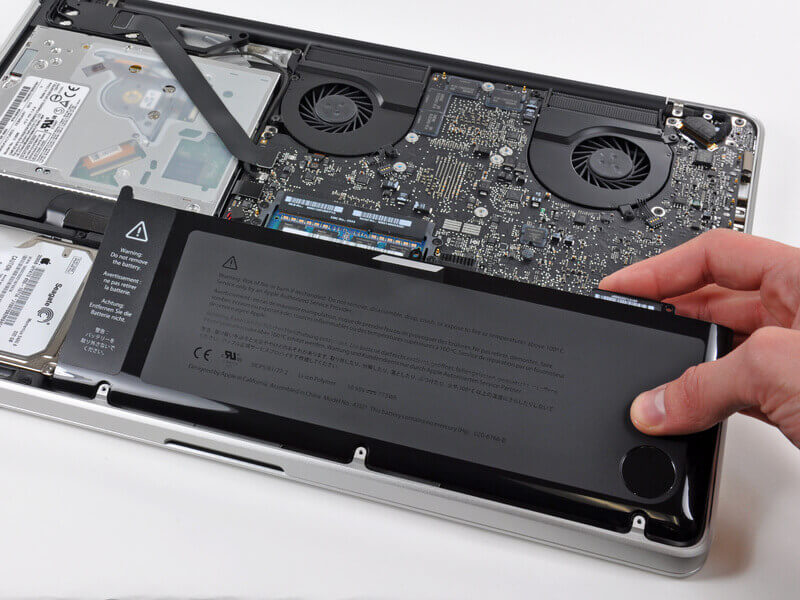
And if the battery has an issue, surely you should book a service and take your Mac to Apple Store for a battery replacement.
Where you take it is the flexible part. The 80% line is the one that matters: Apple considers a Mac notebook battery consumed below 80% of original capacity, and that is the threshold AppleCare coverage uses.
| สถานการณ์ | What to expect |
|---|---|
| Below 80% capacity, AppleCare+ active | Battery service at no additional charge |
| Defective battery, within the one-year limited warranty | Replacement at no charge |
| Normal wear, no coverage | Out-of-warranty fee, roughly $129–$249 by model — MacBook Air at the low end, 14-inch and 16-inch MacBook Pro at the high end |
| Older Mac, out of warranty | Independent Repair Provider with genuine Apple parts, or Self Service Repair for 2020-and-later models |
| Swollen battery | Stop using the Mac; treat as a safety issue |
You are no longer limited to an Apple Store — Apple Authorized Service Providers, Independent Repair Providers and Self Service Repair all exist now, and Apple warns that Macs with built-in batteries should only be serviced by one of those channels, since repairs by untrained individuals or with non-genuine parts can damage the equipment and are not covered by warranty. And pricing is model-dependent, confirmed only after inspection, so treat the range above as a planning figure and get an estimate for your serial number first.
คำถามที่พบบ่อย
1. Where is battery health on a Mac in 2026?
Apple menu → System Settings → Battery, then read the Battery Health line; click the info button beside it for Maximum Capacity. On older macOS, use System Preferences → Battery (or Energy Saver) → Battery Health, or Option-click the battery icon.
2. Why does my Mac say Service Recommended?
macOS has detected either that the battery holds less charge than when new, or that it is not functioning normally. It is not an emergency — you can safely keep using the Mac. It becomes actionable alongside short runtime, unexpected shutdowns, or a swollen case.
3. What happened to Replace Soon, Replace Now and Service Battery?
Those were three of the four legacy labels. Current macOS merges all three warnings into a single Service Recommended message; you still see the old wording on older macOS and in the Option-click menu.
4. How many charge cycles is a MacBook good for?
Essentially every Mac notebook from 2010 onward, including all Apple silicon models, is rated for 1,000 cycles. The oldest 2006–2008 models were rated 300, and 2008–2009 models 500.
5. Can I see the cycle count without installing anything?
Yes — hold Option, click the Apple menu, choose System Information, select Power under Hardware, and read Cycle Count. The Terminal equivalent is
system_profiler SPPowerDataType
.
6. Why is my Mac not charging past 80%?
That is Optimized Battery Charging, not a fault. macOS learns your routine and delays the final charge to slow chemical aging. Choose Charge To Full Now from the battery menu rather than turning the feature off.
7. Do Apple silicon Macs report battery health differently from Intel Macs?
The readouts sit in the same places. The management layer differs: Intel Macs run Battery health management (also labelled Manage battery longevity ), which can lower the maximum charge and can be switched off; Apple silicon Macs run Optimized Battery Charging , which cannot be disabled as a system feature. On macOS Tahoe 26.4 and later, Apple silicon Macs also gained a Charge Limit slider from 80% to 100%.
8. How much does Apple charge to replace a MacBook battery?
Out-of-warranty battery service typically runs about $129–$249 depending on the model, confirmed by Apple after inspection. Under AppleCare+, a battery testing at or below 80% of original capacity is serviced at no additional charge.
บทสรุป
Checking a Mac or MacBook battery takes under a minute once you know where to look, and it is worth doing regularly rather than waiting for the machine to strand you. Start with System Settings → Battery → Battery Health on any Mac running macOS Ventura 13 or later: that one line tells you whether macOS considers the battery Normal or Service Recommended, and the info button beside it now gives you the Maximum Capacity percentage that older versions of macOS withheld. Fall back to the Option-click battery menu on older systems, and use System Information → Power — or
system_profiler SPPowerDataType
in Terminal — whenever you need the hard numbers behind the label.
The two numbers to read together are capacity percentage and cycle count. Capacity tells you how long the Mac will run on a charge today; cycle count tells you how much of the battery’s designed life is already spent. Nearly every Mac from 2010 onward is rated for 1,000 cycles, and Apple designs the cell to retain roughly 80% of its original capacity at that point, so passing 1,000 cycles is a signal to plan rather than a failure. Below 80% capacity Apple treats the battery as consumed, and under AppleCare+ that is the threshold at which service is free.
Keep the diagnosis proportionate. A Mac reporting Service Recommended but still lasting through your working day does not need a battery tomorrow; a Mac with a bulging case needs to be unplugged and inspected today, whatever the percentage says. Check both numbers a couple of times a year, leave Optimized Battery Charging on, keep the machine out of sustained heat, and you will get the full life out of the cell — and when it is worn out, you will know it from the data instead of guessing from a short battery life problem.
บทความนี้มีประโยชน์มากน้อยแค่ไหน?
คลิกที่ดาวเพื่อให้คะแนน!
คะแนนเฉลี่ย 5. ผลการนับคะแนน: