Apple released macOS Catalina last year. It introduces new security mechanisms. Software on Mac does not have access to restricted documents without the user’s consent. These restricted file types are Cookie, Safari Data, Message History, iTunes Backup, Time Machine Backup, and some other files. The beta version of the newly released BemacOS Catalina in 2019 also continues this security mechanism. This avoids the disclosure of personal privacy data. Let’s get to the point. How can we view the iPhone backup files on the Mac? Now let’s talk about this issue specifically.
Part 1: How to find iPhone Backup Files on Mac
We need to browse the backup files on the iPhone. You need to ask a question, where is the iPhone backup file stored? If you have granted iTunes access to backup files, you can quickly find iTunes backup files by following the steps below.
1. Open the “Search” icon in the menu bar.
2. Type this text: ~/Library/Application Support/MobileSync/Backup/
3. After tapping the Enter key, you will find a series of backup files.
4. If you want to locate a specific backup file, you need to open the iTunes software.
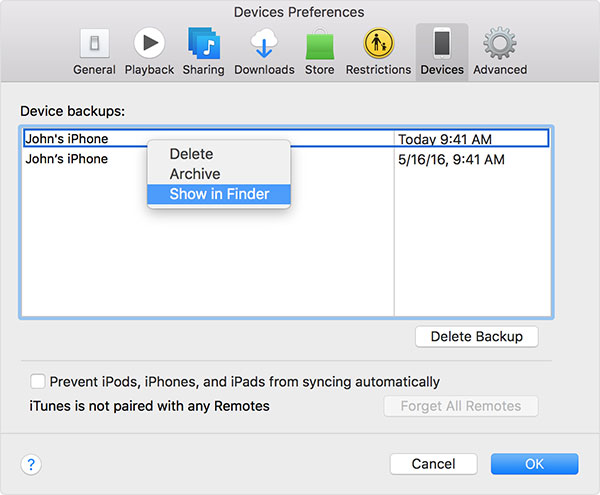
5. Find “iTunes” in the menu bar and select the “Preferences”.
5. Click on “Devices” and find the “Show in Finder” option.
Note: Please do not move these backup files at will, otherwise it will cause damage to the backup files.
Part 2: How to better view iPhone backup files
After the backup files on iTunes are found, if you need to preview these files, it is recommended to use iPhone Data Recovery. This program allows you to selectively view the files you need to retrieve before you restore them.
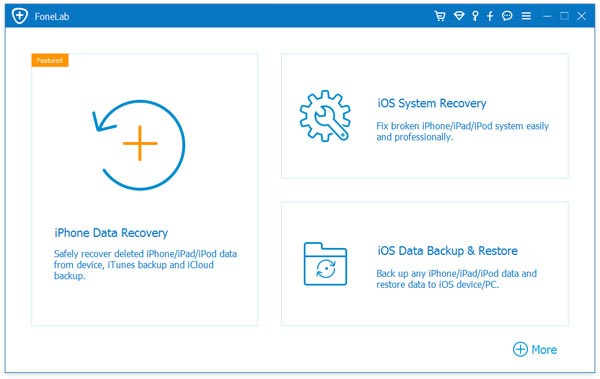
1. Download and install iPhone Data Recovery on your Mac.
2. Click on “iPhone Data Recovery”. Then select “Recover from iTunes Backup File”.
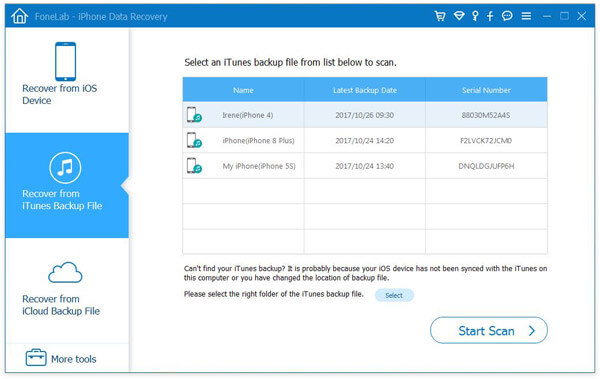
3. Choose the iTunes backup file you want to browse and tap the type of file you want to view.
4. After viewing your backup file. Click “Recover” to restore the files you need. If you only need to browse the contents of your backup file, you can ignore this step.
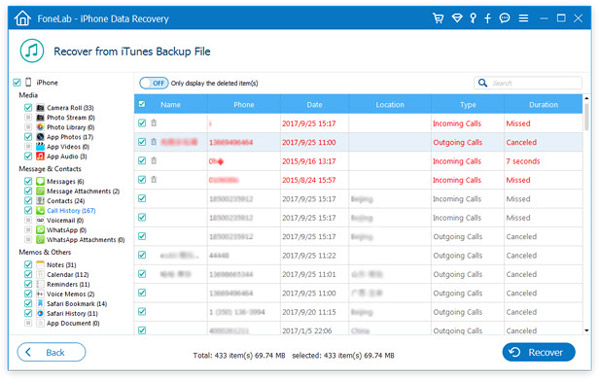
In addition to browsing backup files on iTunes, this software can also view deleted SMS on iCloud.
บทความนี้มีประโยชน์มากน้อยแค่ไหน?
คลิกที่ดาวเพื่อให้คะแนน!
คะแนนเฉลี่ย 5. ผลการนับคะแนน: